
howto
Borrowing a License for Creo Schematics
How a Creo Schematics user with a floating license borrows a license for offline use.
License borrowing allows a Creo Schematics user with a floating license to temporarily use Creo Schematics while disconnected from the organization's license server.
PTC's documented borrowing workflow uses a file named:
schematics_borrow.bat
located in the Creo Schematics bin directory. However, this file may not be created automatically with your installation. If it is missing, you can create it using the existing Creo Parametric borrow file as a starting point.
Note: These steps assume Creo Parametric and Creo Schematics are installed from the same Creo release on the computer.
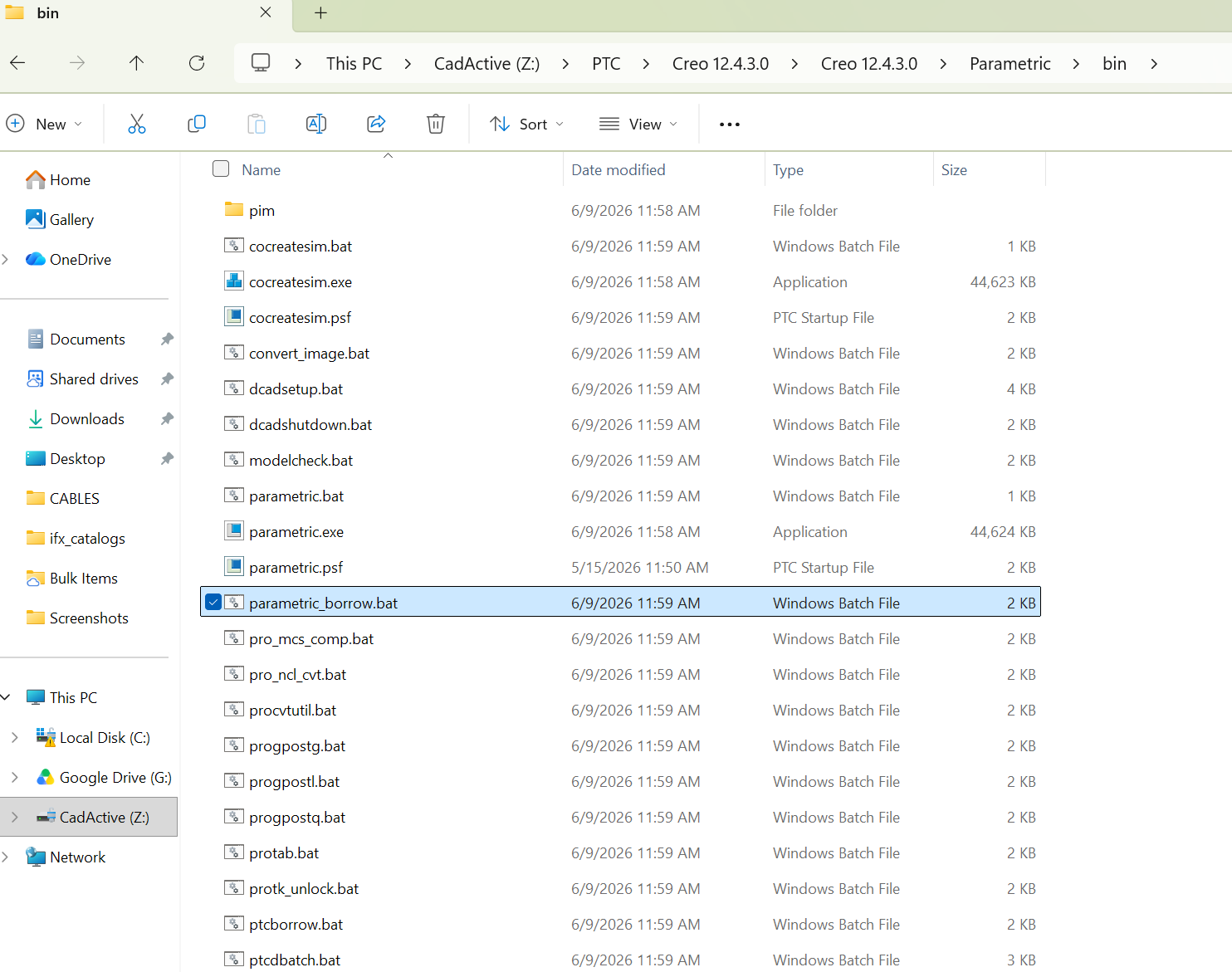
1. Locate the Creo Parametric Borrow File
Browse to the Creo Parametric bin directory. A typical installation path is:
C:\Program Files\PTC\Creo <version>\Parametric\bin
Locate:
parametric_borrow.bat
2. Copy the Borrow File to Creo Schematics
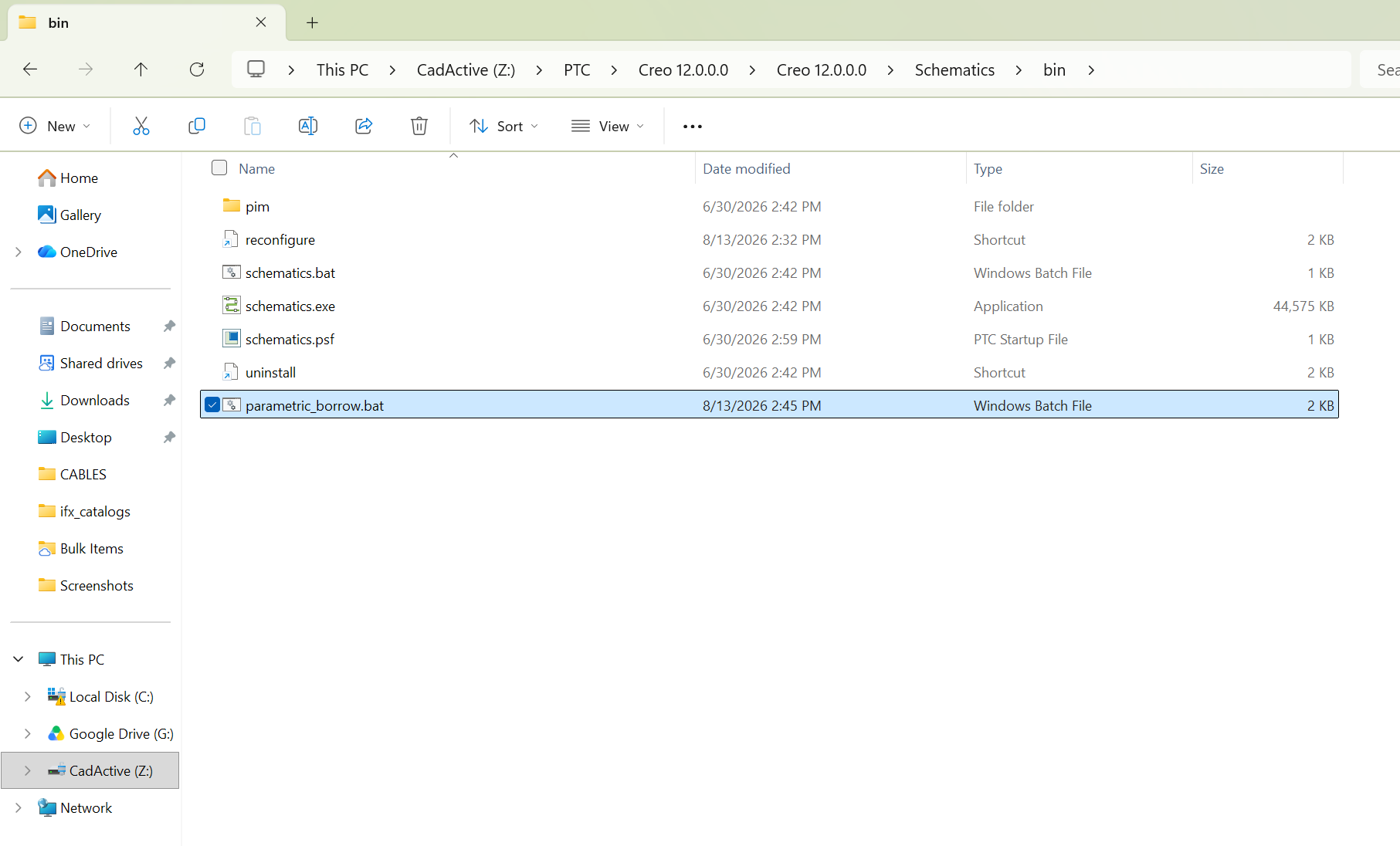
Copy parametric_borrow.bat.
Then browse to the Creo Schematics bin directory:
C:\Program Files\PTC\Creo <version>\Schematics\bin
Paste the copied file into this folder.
3. Rename the File
Rename the copied file from:
parametric_borrow.bat
to:
schematics_borrow.bat
This keeps the borrowing utility clearly associated with Creo Schematics.
4. Update the Borrow Command
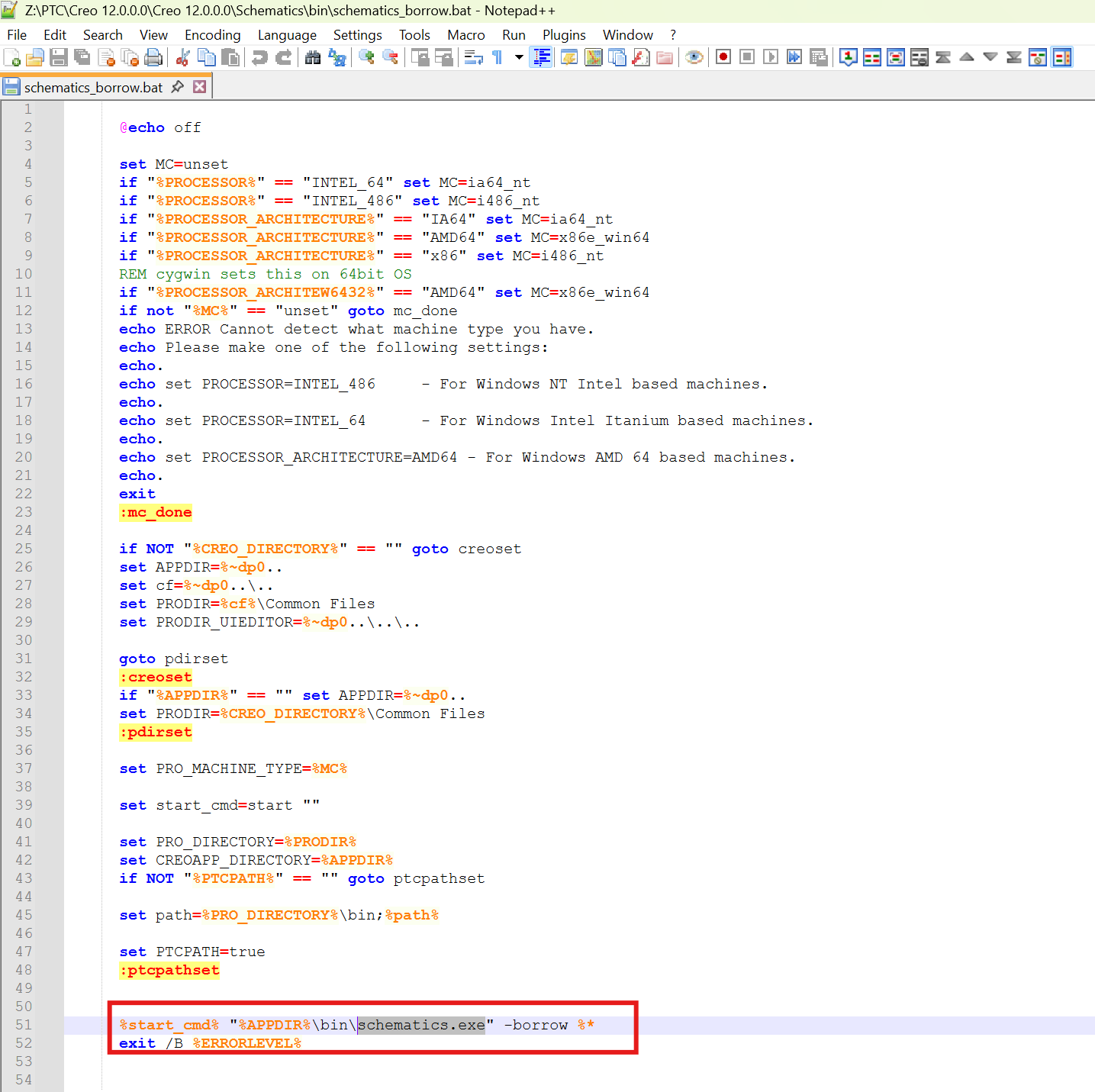
Right-click schematics_borrow.bat and open it with Notepad or another text editor.
Near the bottom of the file, locate the borrow command containing:
parametric.exe
Change only the application executable from:
parametric.exe
to:
schematics.exe
The updated command should reference the same schematics.exe application found in the Creo Schematics bin directory.
Save and close the file.
Important: Avoid changing the other contents of the batch file unless you understand how they affect the Creo startup and licensing configuration.
5. Borrow the Creo Schematics License
While connected to your organization's license server, run:
schematics_borrow.bat
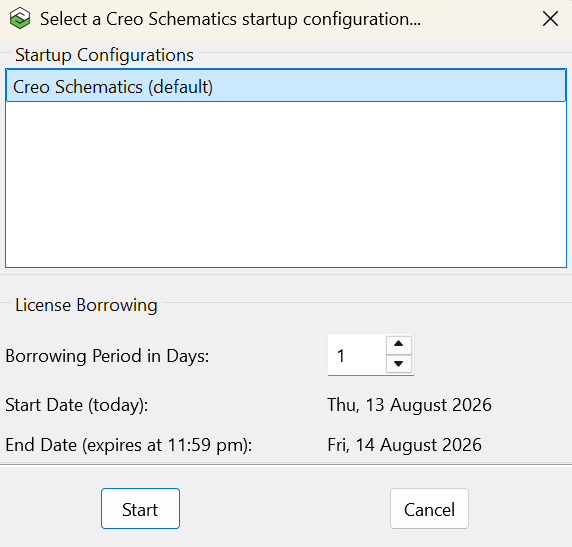
The borrowing window will open.
Select the appropriate Startup Configuration.
Enter the number of days you want to borrow the license.
Select Start.
Allow Creo Schematics to launch in Borrow Configuration mode.
Exit Creo Schematics after the required licenses have been checked out.
Once complete, disconnect from the company network or VPN and start Creo Schematics normally to confirm that the borrowed license is available.
Tip: Test Creo Schematics while you still have access to the company network before leaving or traveling.
PTC License Borrowing Documentation
PTC provides additional information about the Creo Schematics borrowing process, including selecting a startup configuration, specifying the borrowing period, and using the borrowed license while disconnected from the license server.
PTC – Using the Borrow.bat File
Returning a License Early
If you need to return a borrowed license before its scheduled expiration date, PTC provides instructions for configuring and performing an early return. Review these requirements before borrowing the license, as some settings must be configured in advance.