
howto
Installing and Configuring Creo Simulation Applications
How to install and configure Creo Simulate, Creo Ansys Simulation, and Creo Simulation Live.
Creo Parametric offers several simulation applications, including Creo Simulate, Creo Ansys Simulation, and Creo Simulation Live.
While these products have some overlapping capabilities, they are intended for different types of simulation workflows. It is important to determine which simulation applications you plan to use before installing Creo, because the required application components must be selected during the initial installation.
Before Installing Creo
When running the PTC Creo Installation Assistant, review the applications and features available for installation before proceeding.
If you plan to use Creo Simulate, Creo Ansys Simulation, or Creo Simulation Live, make sure the checkbox for each required simulation application is selected during the initial Creo installation.
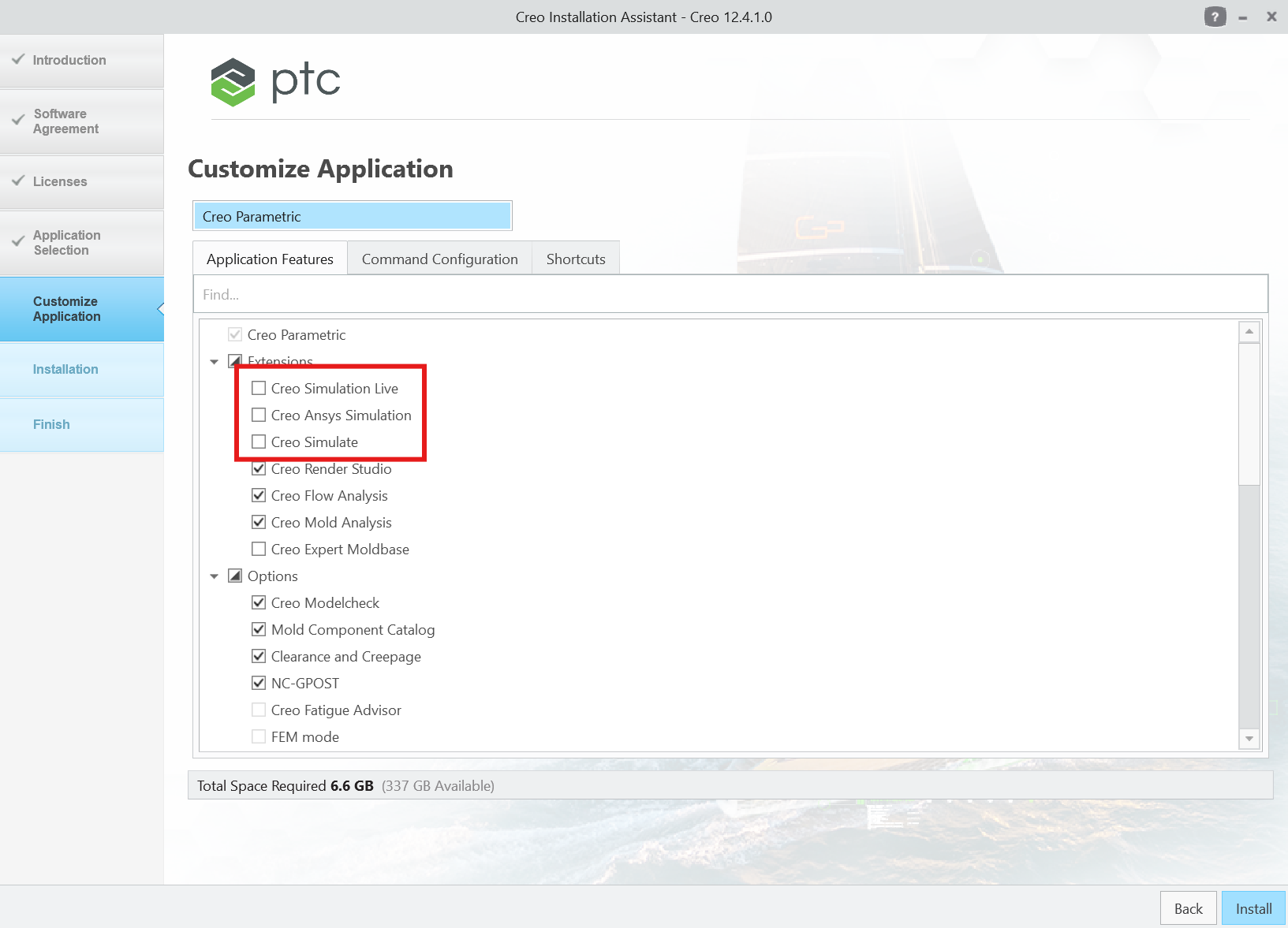
Important: The installation checkbox is required for all three simulation applications. If a simulation application was not selected during the initial installation, Creo must be uninstalled and reinstalled to return to the application-selection screen and install the required components.
Running Reconfigure afterward does not install these missing application components.
Configure the Simulation Licenses
In addition to installing the required simulation components, the appropriate licenses must also be configured for Creo.
The licensing workflow is slightly different depending on which simulation application you are using.
Creo Ansys Simulation and Creo Simulation Live
Licenses for Creo Ansys Simulation and Creo Simulation Live are configured through the Command Configuration tab.
Select your Creo startup configuration and choose Edit. The available simulation licenses will appear under Floating options, where they can be added to the Startup extensions and floating options for that configuration.
Depending on the licenses owned by your organization, you may see options such as:
ANSYS Simulation
Creo ANSYS Simulation Advanced
Simulation Live
Simulation Live Advanced
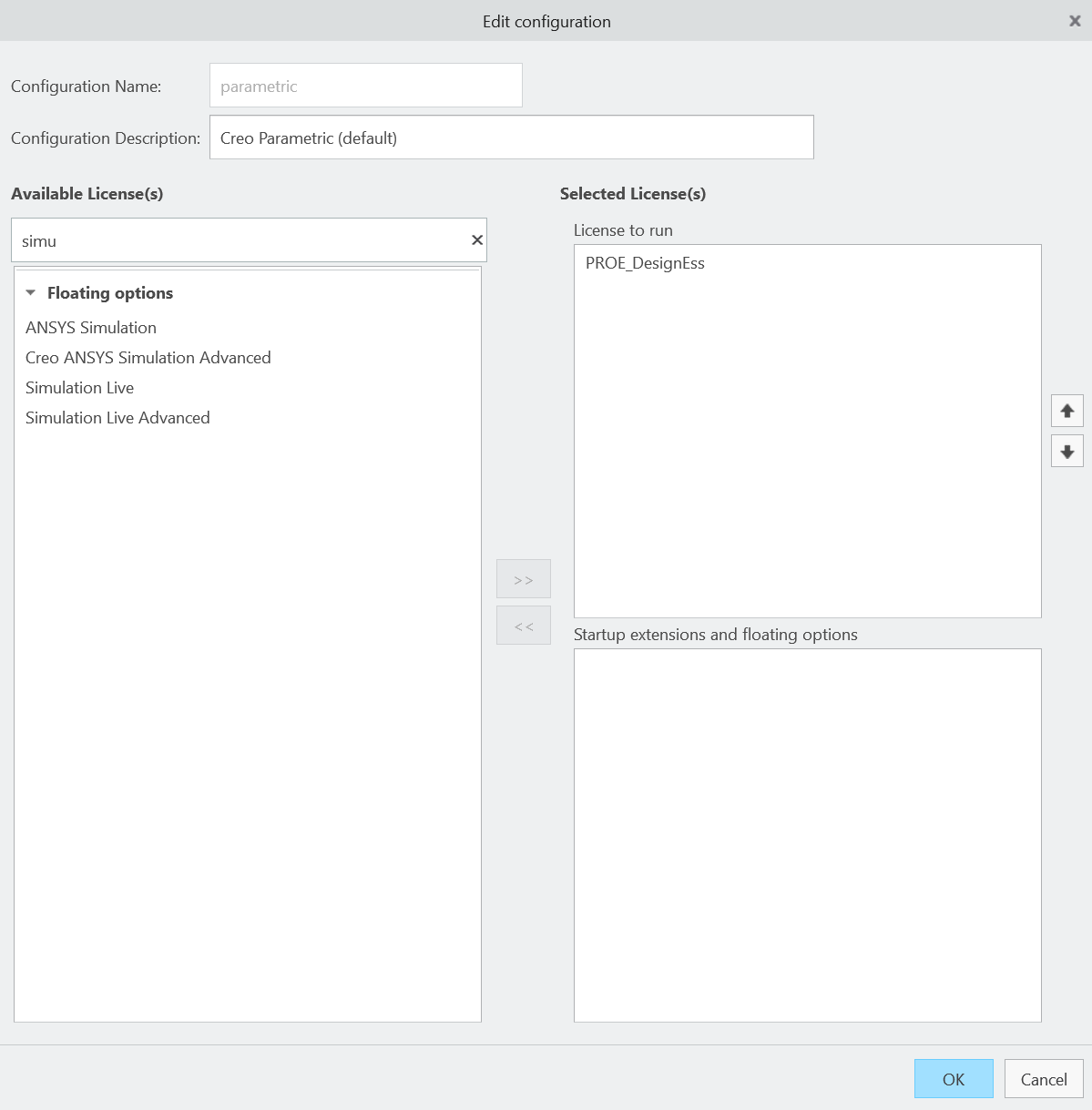
Note: The exact license names available will depend on your organization's PTC license package.
Creo Simulate
Creo Simulate is configured differently. Once Creo Simulate has been selected for installation under Application Features, an additional Simulate Licenses tab appears in the Creo Installation Assistant.
Use this tab to configure the appropriate license features for the Creo Simulate capabilities available to your organization.
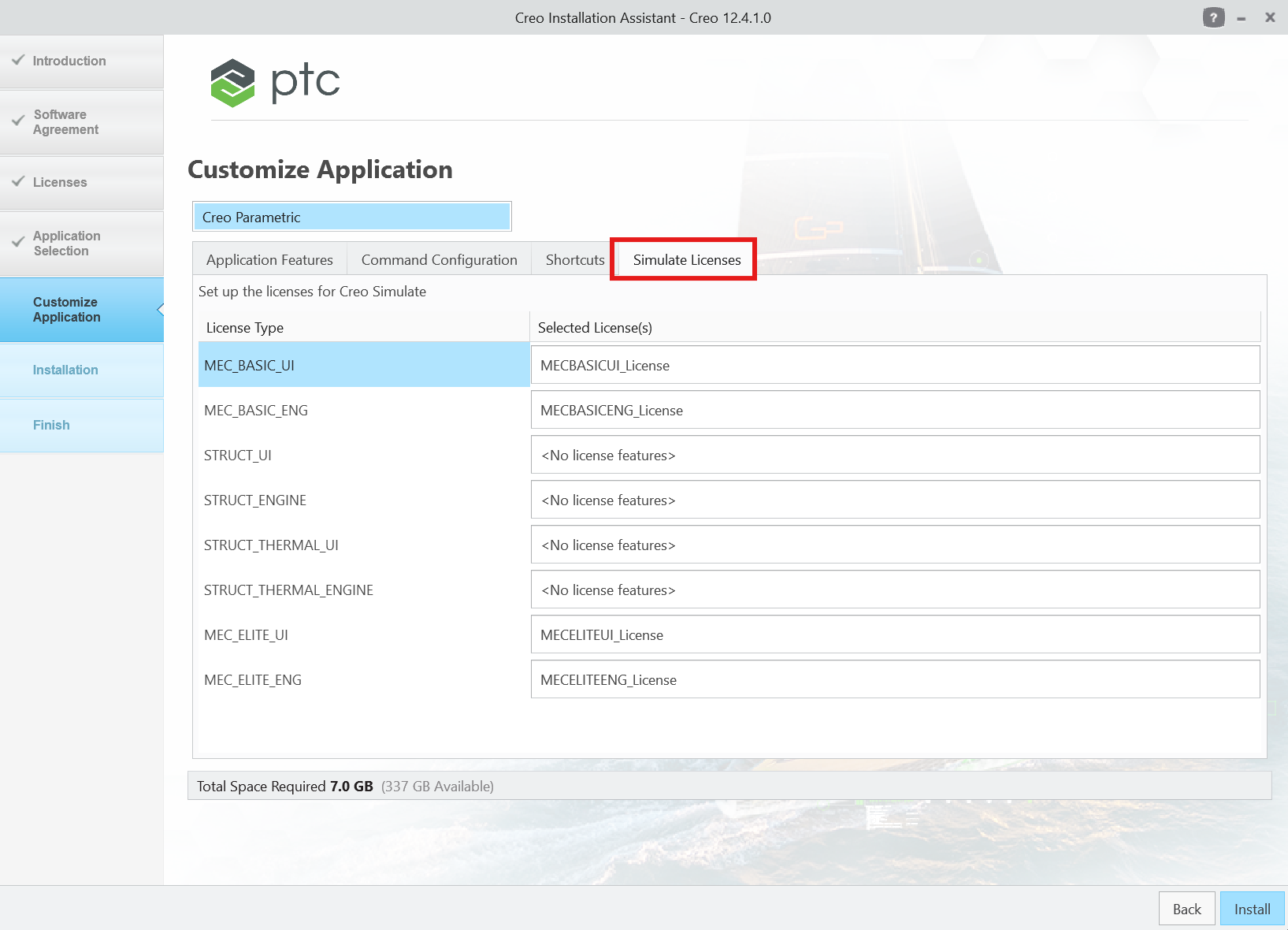
Important: Configuring a license does not install the corresponding simulation application. Creo Simulate, Creo Ansys Simulation, and Creo Simulation Live must each be selected for installation using their respective checkbox during the initial Creo installation. If the required component was not selected, adding its license later through Reconfigure will not make the functionality available. Creo must be uninstalled and reinstalled to return to the application-selection screen.
Creo Simulate and Creo Ansys Simulation
Both Creo Simulate and Creo Ansys Simulation are intended for more traditional simulation workflows where a study is defined, solved, and then reviewed.
Creo Simulate
Creo Simulate is PTC's traditional CAE environment for evaluating the mechanical and thermal behavior of Creo models. It includes Structure and Thermal capabilities and can calculate results such as stresses, deflections, frequencies, and heat transfer.
Creo Simulate can be used directly within Creo Parametric, and certain configurations also support a standalone Creo Simulate environment.
PTC Help – About Creo Simulate
Creo Ansys Simulation
Creo Ansys Simulation provides finite element analysis directly within Creo Parametric while using Ansys solver technology.
It supports studies such as:
Structural
Thermal
Modal
Creo Ansys Simulation is generally a good fit when a more detailed simulation workflow and the Ansys solver are desired while remaining within the Creo environment.
PTC Help – Overview of Creo Ansys Simulation
Creo Simulation Live
Creo Simulation Live (CSL) is designed differently from Creo Simulate and Creo Ansys Simulation.
Rather than setting up a study and waiting for a traditional solve, Simulation Live provides near real-time simulation feedback while the design is being developed. Changes to geometry, materials, loads, and constraints can be evaluated interactively as the model changes.
This makes Simulation Live particularly useful for designers who want quick feedback during early design decisions rather than waiting until the design is ready for a more detailed analysis.
Simulation Live supports capabilities such as structural, thermal, modal, and—depending on licensing—fluid simulation.
Installing and Licensing Simulation Live
Like the other simulation applications covered in this article, Creo Simulation Live must be selected during the initial Creo installation to ensure the required application components are installed.
Licensing for Simulation Live can vary depending on your organization's PTC license package and how Creo is configured. In some environments, a Simulation Live license may be assigned through the Command Configuration during installation. In others, the required floating license may be obtained automatically from the license server when Simulation Live is accessed.
Note: If your organization has a Creo Simulation Advanced license that includes the required Simulation Live entitlement, Creo may pull the appropriate license automatically from the license server when it is needed. In this case, no additional license configuration may be required from the CAD administrator.
If Simulation Live is installed and you are unsure whether the appropriate license is being obtained, open the Live Simulation tab in Creo and confirm that the functionality is available.
If the Live Simulation tab does not appear, also verify that the following Creo configuration option has not disabled it:
enable_creo_simulation_live
The value should normally be:
yes
PTC – Getting Started with Creo Simulation Live (CS315248)
Which Simulation Application Should I Use?
As a general guideline:
Creo Simulate — PTC's traditional Structure and Thermal simulation environment with extensive simulation modeling and analysis capabilities.
Creo Ansys Simulation — Detailed finite element analysis within Creo using Ansys solver technology.
Creo Simulation Live — Fast, interactive simulation feedback intended to help evaluate design changes while modeling.
The right application will depend on the simulation capabilities your organization owns, the type of analysis being performed, and whether the goal is rapid design feedback or a more detailed simulation study.